
These instructions will walk you through the process for logging into the InSite application and creating an organization account. These steps should be followed by the individual identified as the organization administrator for InSite, as the person who creates the organization account is automatically set as the administrator.
1. Go to app.insite.natureserve.org
2. Click "Login" button
3. Click "Login with NatureServe"
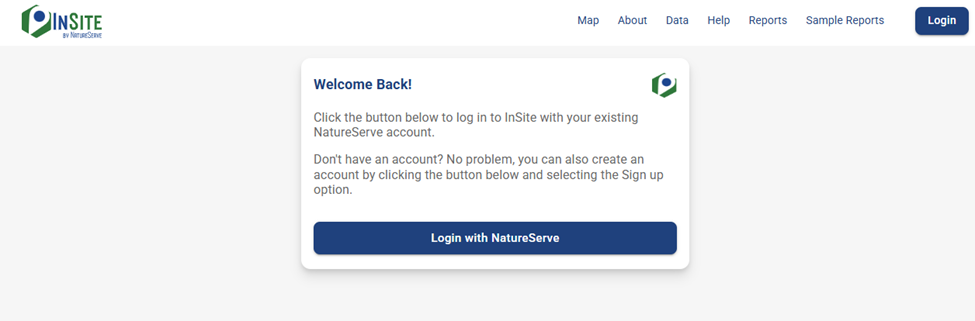
4. If you already have a NatureServe account (i.e. a NatureServe Explorer Pro account), use the same email and password to login and continue to step #8. If you do not yet have a NatureServe account, click "Sign up".
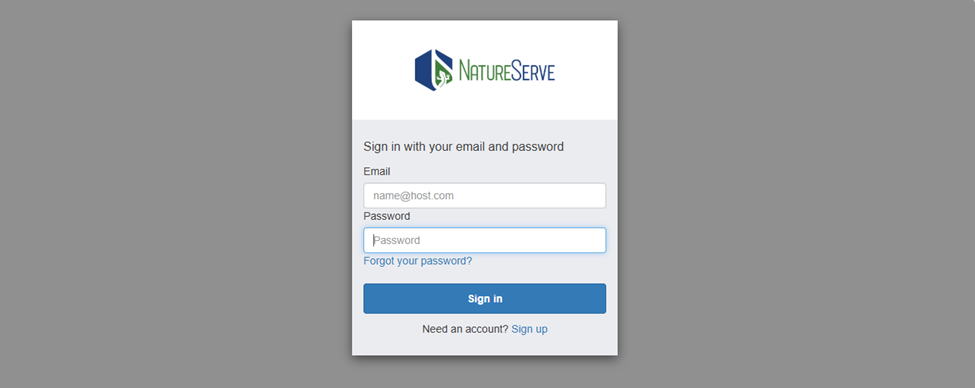
5. Enter an email and password and click "Sign up" to create a new account
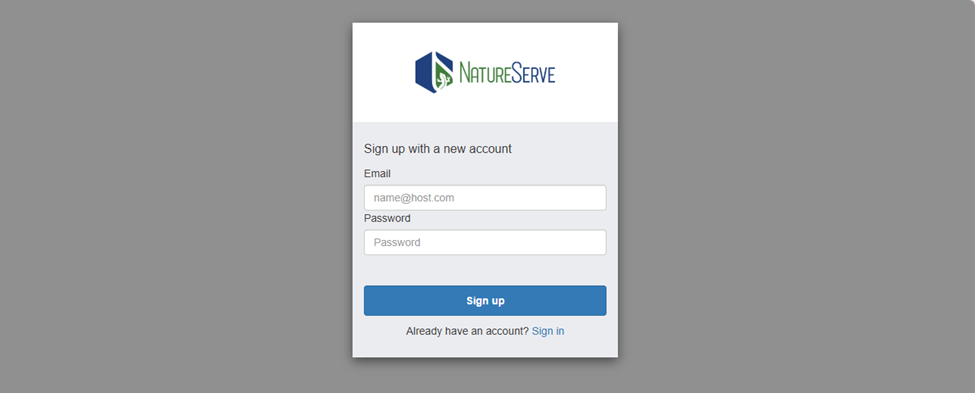
6. Enter verification code that is sent to your email address and click "Confirm account"

7. Fill our your profile information (all fields are required)
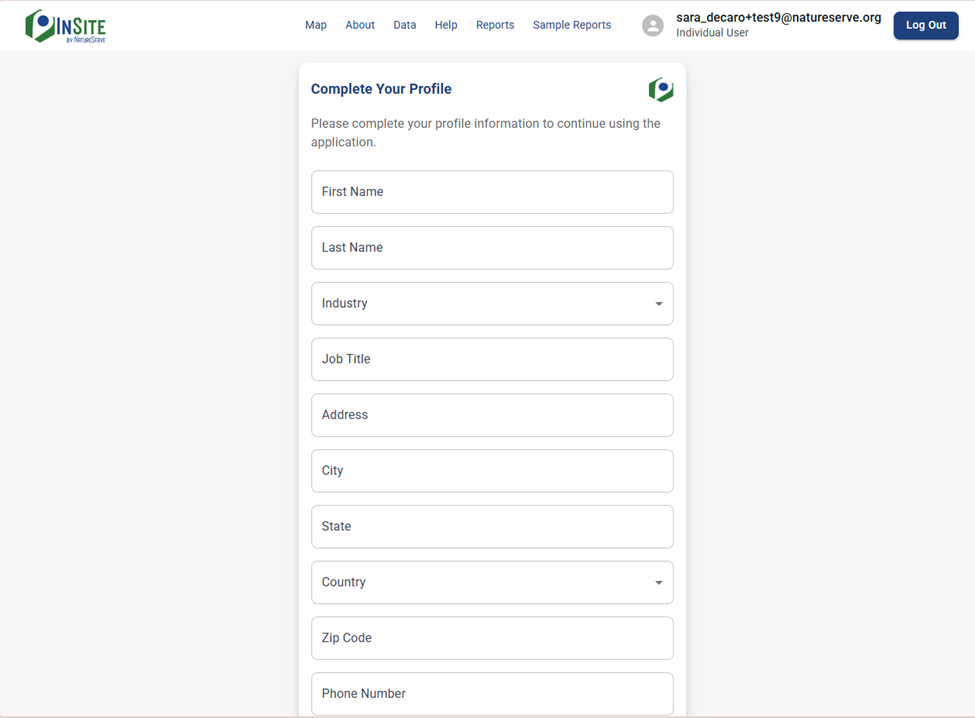
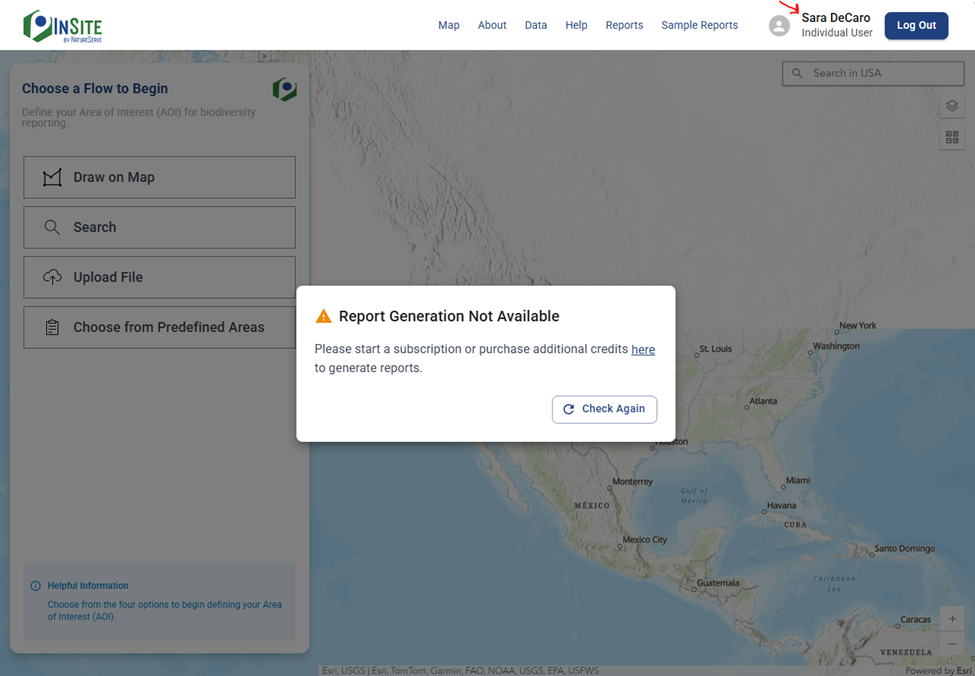
8. This will take you next to the InSite Application, where it says you do not yet have a subscription or credits to generate reports. Go to your name at the top of the page to view your profile information and create an Organization Account.
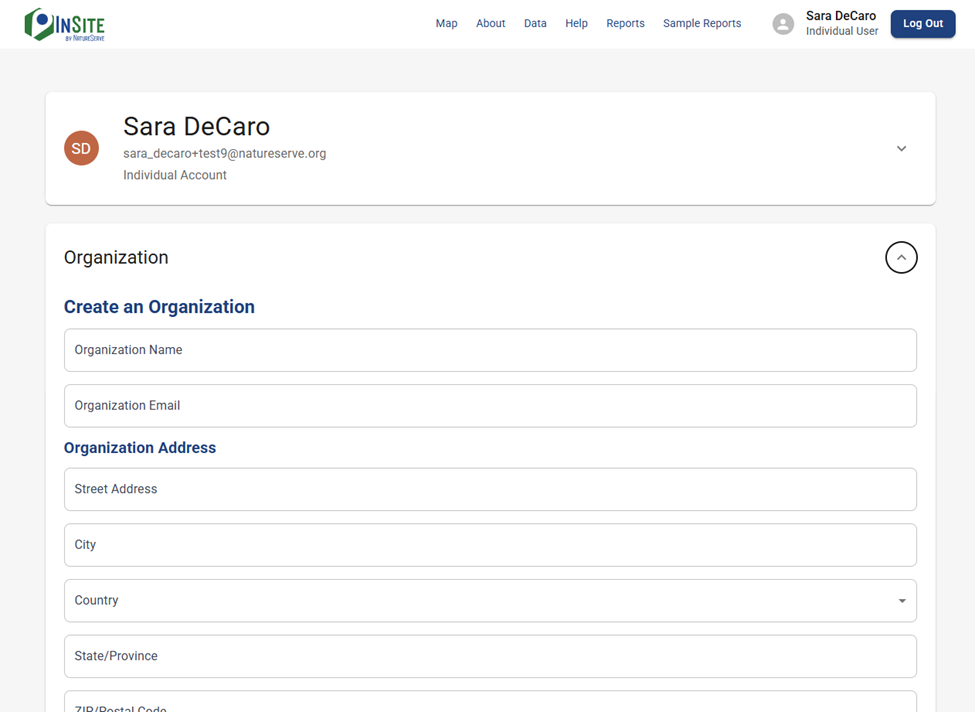
9. Click on the "Organization" tab to expand and enter your organization information. By setting up the Organization Account, you will automatically be assigned as the Organization Account Administrator for InSite.
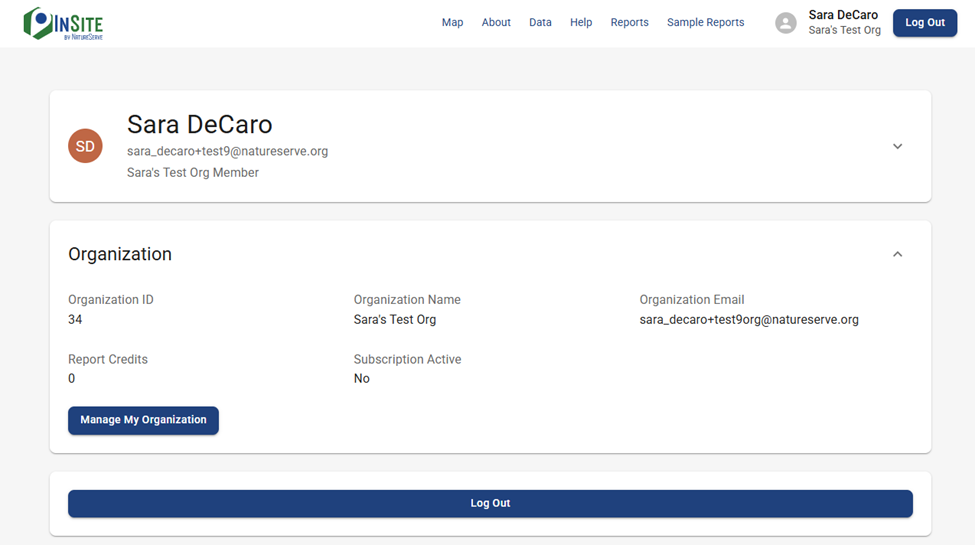
10. After creating your Organization Account, click the button "Manage My Organization".
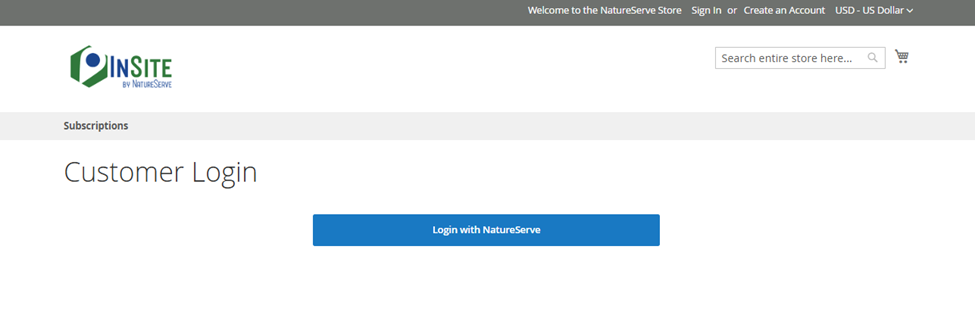
11. This will navigate you to store.natureserve.org. Click "Login with NatureServe". This should automatically log you in with the NatureServe account you were using in the InSite application.
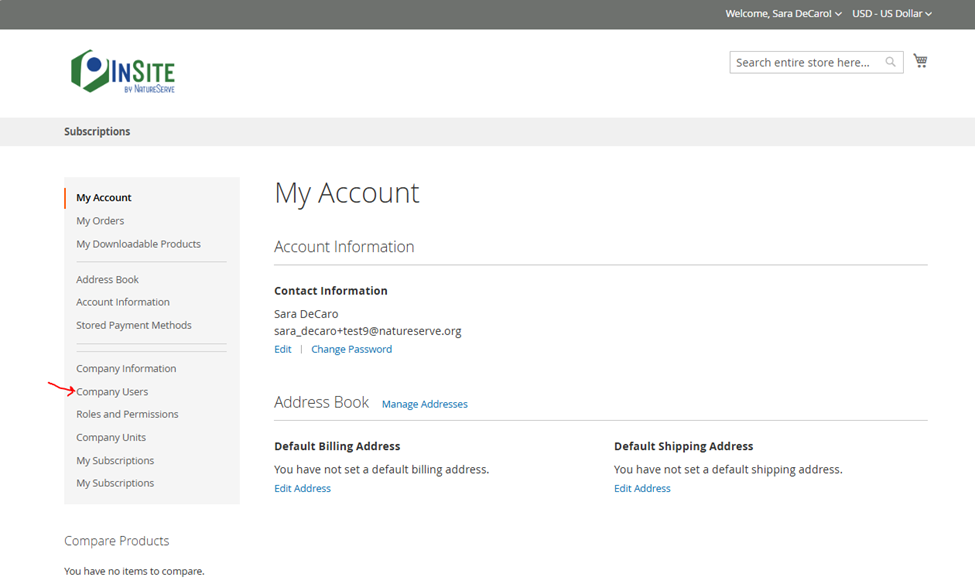
12. Go to "Company Users" on the left-hand side panel to manage users in your Organization Account.
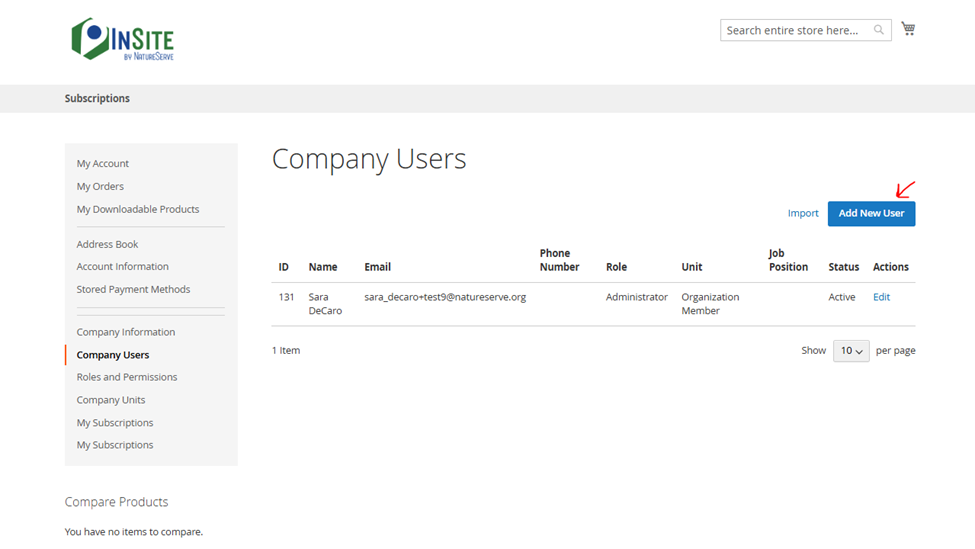
13. To add users to your Organization Account, click the button "Add New User".
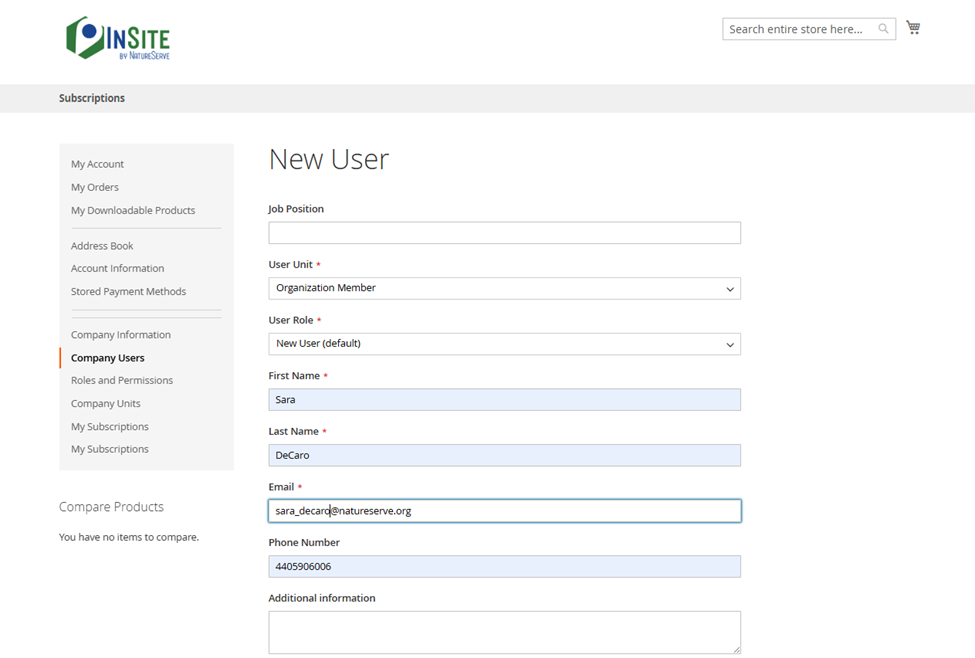
14. Enter the new user's information. The new user's email address should be the same email address they use for their existing NatureServe account or be the email address they use to create a new NatureServe account.
15. Instruct the new users to go to app.insite.natureserve.org and login with their NatureServe account or create a new account. They will see their organization set in their profile page.
16. You are all set to purchase InSite subscriptions or credits for you and your organization users to use!